Start Project
INSTRUCTON
GSAP INSTRUCTION
Activate GSAP Library
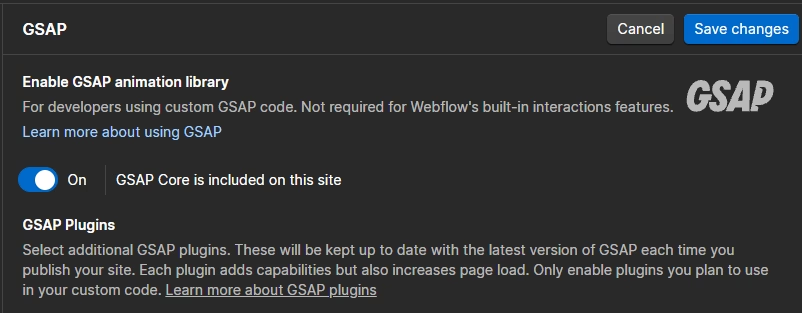
In your webflow canvas, go to Settings > GSAP > Enable the GSAP animation library. Then your settings would look like this.
Custom Code
Go to site settings
Click "custom code" option, slide into a footer code block.
You will see some codes that used in this website templates.
Edit Smooth Scroll
We use lennis scroll for smooth scrolling effects. If you want to change the smoothness, you can edit the 'lerp' to the value that you want.
<script src="https://unpkg.com/lenis@1.3.4/dist/lenis.min.js"></script>
<link rel="stylesheet" href="https://unpkg.com/lenis@1.3.4/dist/lenis.css"/>

<script>
  const lenis = new Lenis({
    smooth: true,
    lerp: 0.07,
    wheelMultiplier: 1,
    infinite: false,
  });

lenis.on('scroll', ScrollTrigger.update);

gsap.ticker.add((time) => {
  lenis.raf(time * 1000);
});

gsap.ticker.lagSmoothing(0);
</script>
Edit Scramble Text Button
Make sure you use "Scramble Text" class in your target animation. Also, the parent container should be added into querySelectorAll. You won't see this affect in preview mode, make sure to publish the site first.
<script src="https://cdnjs.cloudflare.com/ajax/libs/gsap/3.12.5/gsap.min.js"></script>

<script>
gsap.registerPlugin(ScrambleTextPlugin);

document.querySelectorAll(".main-button, .nav-block, .nav-link").forEach((btn) => {

  const text = btn.querySelector(".scramble-text");
  const originalText = text.textContent;

  btn.addEventListener("mouseenter", () => {
    gsap.to(text, {
      duration: 1.4,
      ease: "power2.out",

      scrambleText: {
        text: originalText,
        chars: "017ABCDEFGHIJKLMNOPQRSTUVWXYZ",
        speed: 0.4,
        tweenLength: false
      }
    });
  });

});
</script>